Beastfolk Barber Windows and macOS Demo Setup
Install cleanly on PC or Mac, verify store minimums, then open the chair without hardware surprises
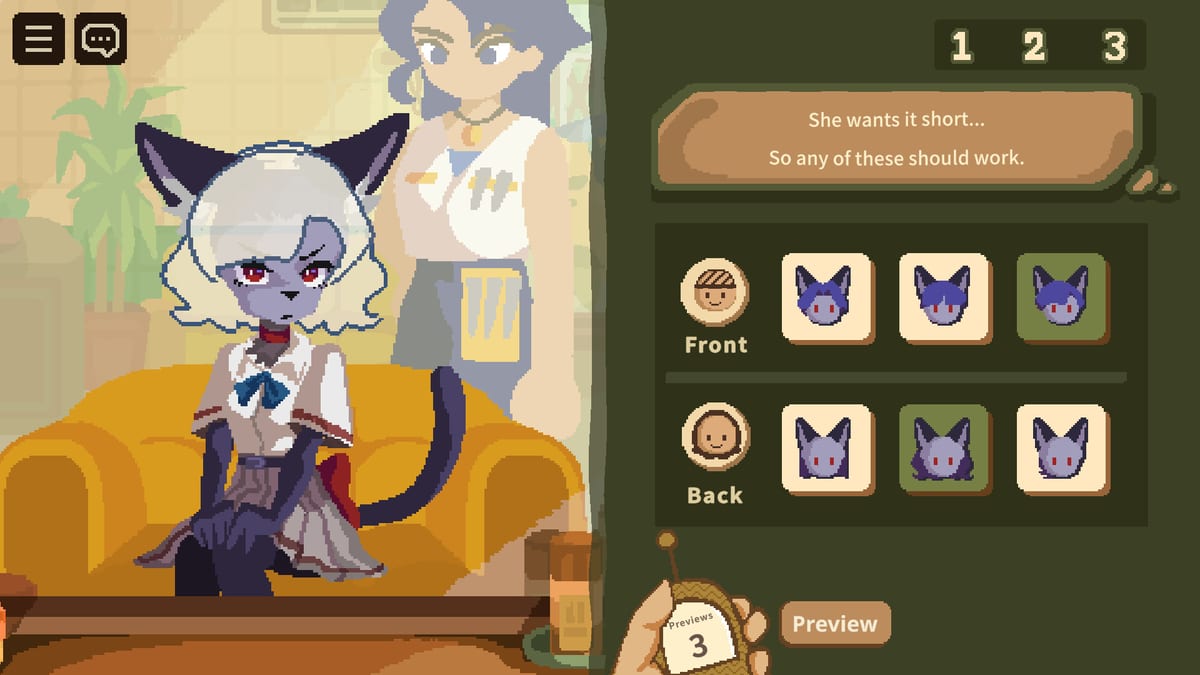
Beastfolk Barber’s free Steam demo targets both Windows and macOS. That dual support is a feature for cozy-narrative fans who live on laptops, but it also creates setup questions Steam’s short blurb does not answer in a wiki voice. This page walks through a clean install path, the published minimum-style requirements, Apple Silicon notes from launch coverage, and the first-launch checks that save a wasted evening. Pair it with Demo download & requirements for the store-facing checklist and the Demo Hub for scope.
Confirm you are installing the demo
Open the main Beastfolk Barber store page (app 4093320). The full game remains TBA; look for the demo download entry linked from that page (demo app 4920000). Wishlisting the main app is optional but useful for release notifications. Installing the wrong mental model—“I bought the full game”—is the most common confusion in launch week chats.
Language packs matter. Official support covers English, Japanese, Simplified Chinese, and Traditional Chinese. Pick the language you read fastest before your first customer; this is a dialogue-forward sim, not a mute clicker.
Windows setup notes
Steam’s published Windows minimum guidance centers on a 64-bit Windows 11 style baseline: roughly an Intel Core i5-1135G7 class CPU, 8 GB RAM, a light discrete GPU example such as GeForce MX330 with 2 GB VRAM, DirectX 11, and about 4 GB storage, with notes describing 1080p at 30 FPS. Treat those lines as the live store’s claim—re-read Steam if numbers move after patches.
Practical Windows tips:
- Close heavy browser GPU tabs before Mirror previews so facial reactions stay readable.
- Use a stable power profile on laptops; thermal throttling is more annoying in dialogue UIs than in action games.
- Keep Steam overlay keybinds from fighting your screenshot habit if you note social-feed clues.
macOS setup notes
Steam lists macOS Monterey-era minimums with an older dual-core i5 class CPU, 8 GB RAM, Intel Iris-class graphics, and about 4 GB storage, again aimed at 1080p / 30 FPS style notes. Launch press for the demo also calls out Apple Silicon machines (M1 and up). If you are on Apple Silicon, install the Steam build Steam offers for your Mac and verify the demo launches before a long session.
Practical Mac tips:
- Grant Steam any OS permissions it requests for downloads; blocked folders look like “broken demos.”
- On battery, raise brightness enough to read Mirror reactions—the mechanic is visual storytelling, not a combat flash.
- If Game Mode or focus features mute notifications, good—keep festival feed reading intentional at day end.
First-launch checklist (both platforms)
- Confirm disk space (~4 GB class claim) and a finished Steam verify.
- Set language, display, and audio so speech and UI contrast are comfortable.
- Play a short appointment focusing on listening before any Mirror spend.
- Finish at least one end-of-day feedback + social feed pass (end-of-day loop).
- Decide whether the laptop stays on a desk for longer sessions—comfort matters more than peak FPS here.
When setup problems are not setup
If the demo launches but you feel lost, that is a Guides problem, not a drivers problem. Open Getting Started and How to use the Mirror. If the build will not start, re-check Steam’s live minimums via the system requirements check page and the store itself before blaming the wiki.
How this page stays current
Hardware lines can change when SIGONO or Steam edit the store. Dated news belongs on Updates; this Setup page should only carry durable install advice plus a pointer to re-verify Steam. After the August 2026 demo launch, dual-platform support is part of the public promise—treat it as a reason to invite Mac friends, not as a guarantee that every five-year-old laptop is fine.
Once Steam says ready, your real work begins in the chair: listen, preview sparingly, and read the city feed before tomorrow’s first cut.
Frequently Asked Questions
Quick answers to the most common questions.
Does the demo run on Mac?
Yes. Steam lists macOS support; launch coverage often mentions Apple Silicon M1+. Always confirm the live store page.
What Windows version is referenced?
Published minimum guidance points at a Windows 11 64-bit style baseline. Re-check Steam if your build differs.
How much storage do I need?
Store notes cite about 4 GB available space. Leave headroom for Steam and screenshots.
Where do I go after a successful install?
Getting Started and the Demo walkthrough.